Layout containers
A layout is a block that holds other blocks. Use it to group, sequence, or compare content.
A layout is a block that holds other blocks. Tabs, an accordion, a timeline, a comparison table. The layout decides how its contents are arranged; you decide what goes inside each part.
You’d use a layout when the same content makes more sense grouped (tabs, accordion), sequenced (process flow, timeline), or contrasted (comparison) rather than running down the page in a single column.
Insert a layout
Open the slash menu and type the name of the layout you want: tabs, accordion, timeline, and so on. Or open the right rail’s Layout category and pick from the list.
The layout drops onto the page with placeholder sections. Click into a section title to rename it; click into the body to add blocks. You can type, paste, or use the slash menu inside a section the same way you would on the page.
A few examples
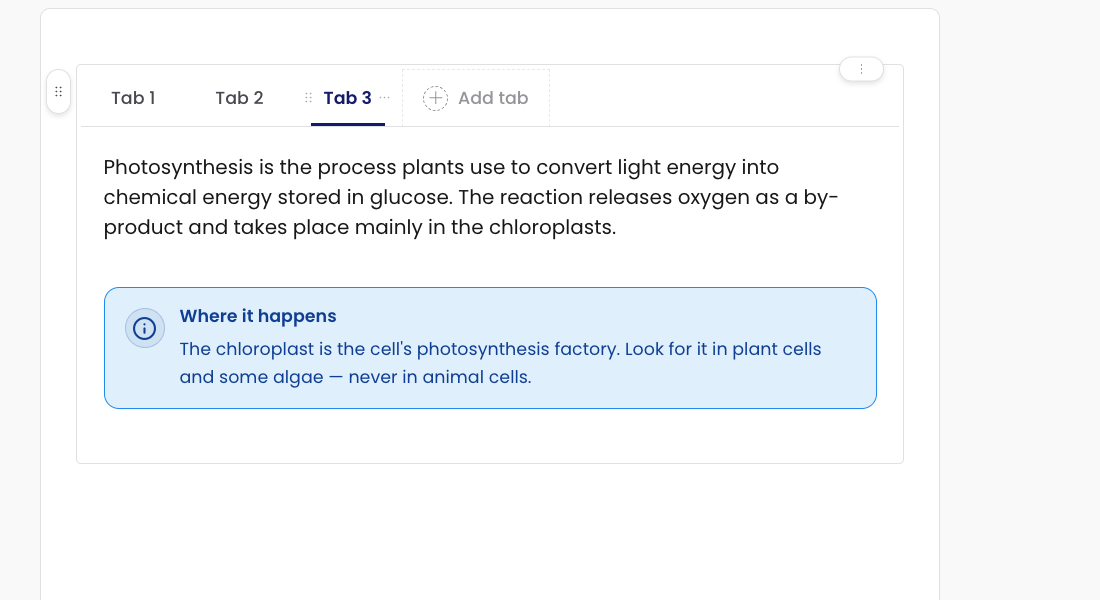
A tabs layout groups related panels behind a tab bar. The learner clicks a tab to switch.
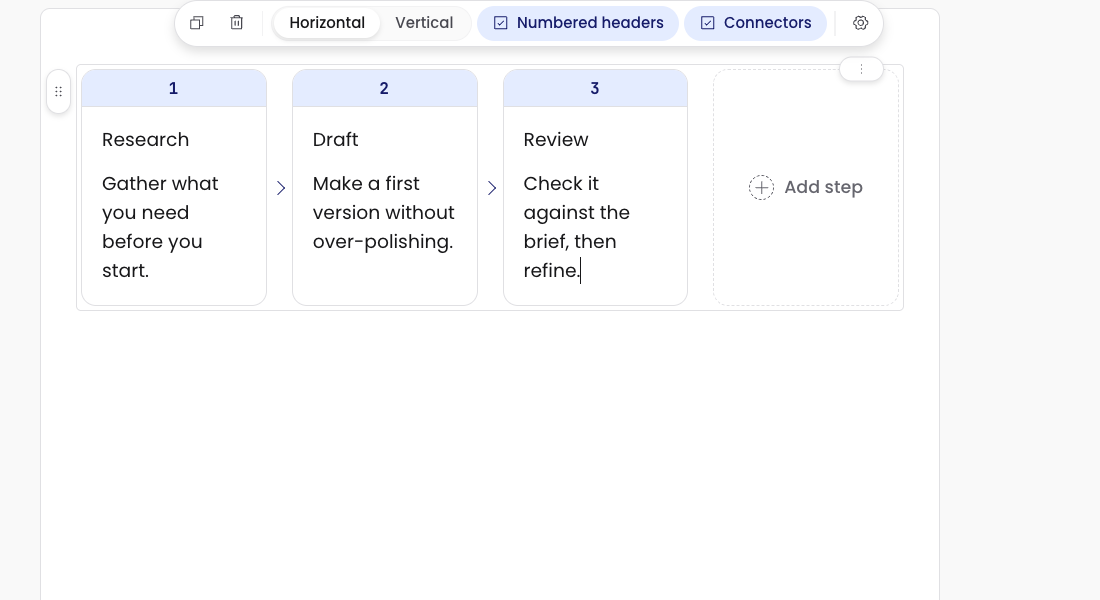
A process flow lays out connected boxes for steps in a procedure or stages of a process.
The other layouts behave similarly: each one has its own visual idiom, but the way you author them is the same.
Layout controls
A layout has controls at two levels: the layout itself, and each section inside it.
Layout-level controls. Every layout has a drag handle and a menu button you click to open the layout menu. The menu acts on the layout as a whole — change its appearance, remove it, and so on.
Section-level controls. Every section inside a layout has its own drag handle and a three-dot menu. Drag the handle to reorder sections; open the three-dot menu to remove a section or change its settings.
The exact position of these controls depends on the layout. A tabs layout puts them next to the tab bar; an accordion puts them next to the section headers; a timeline puts them on the timeline node. Hover or click around the layout and the controls reveal themselves.
Moving things in and out
A block you’ve authored on the page can be dragged into a layout section. A block inside a section can be dragged back out onto the page. The rules are the same as anywhere else in the editor: pick the block up by its drag handle and drop it where you want it.
A layout can also be dragged into a grid cell, so a tabs block or an accordion can sit alongside another block in the same row.
What’s next
- Columns and grid is the other way to organise content. Use a grid when you want blocks side by side without the labels or structure a layout provides.