Adding blocks
Two ways to add a block to your page: the slash menu and the right rail.
Everything in coursekit is a block. A paragraph is a block. A question is a block. An image, a chart, a quiz, a callout. To author a page, you add blocks to it.
There are two ways to add one.
The slash menu
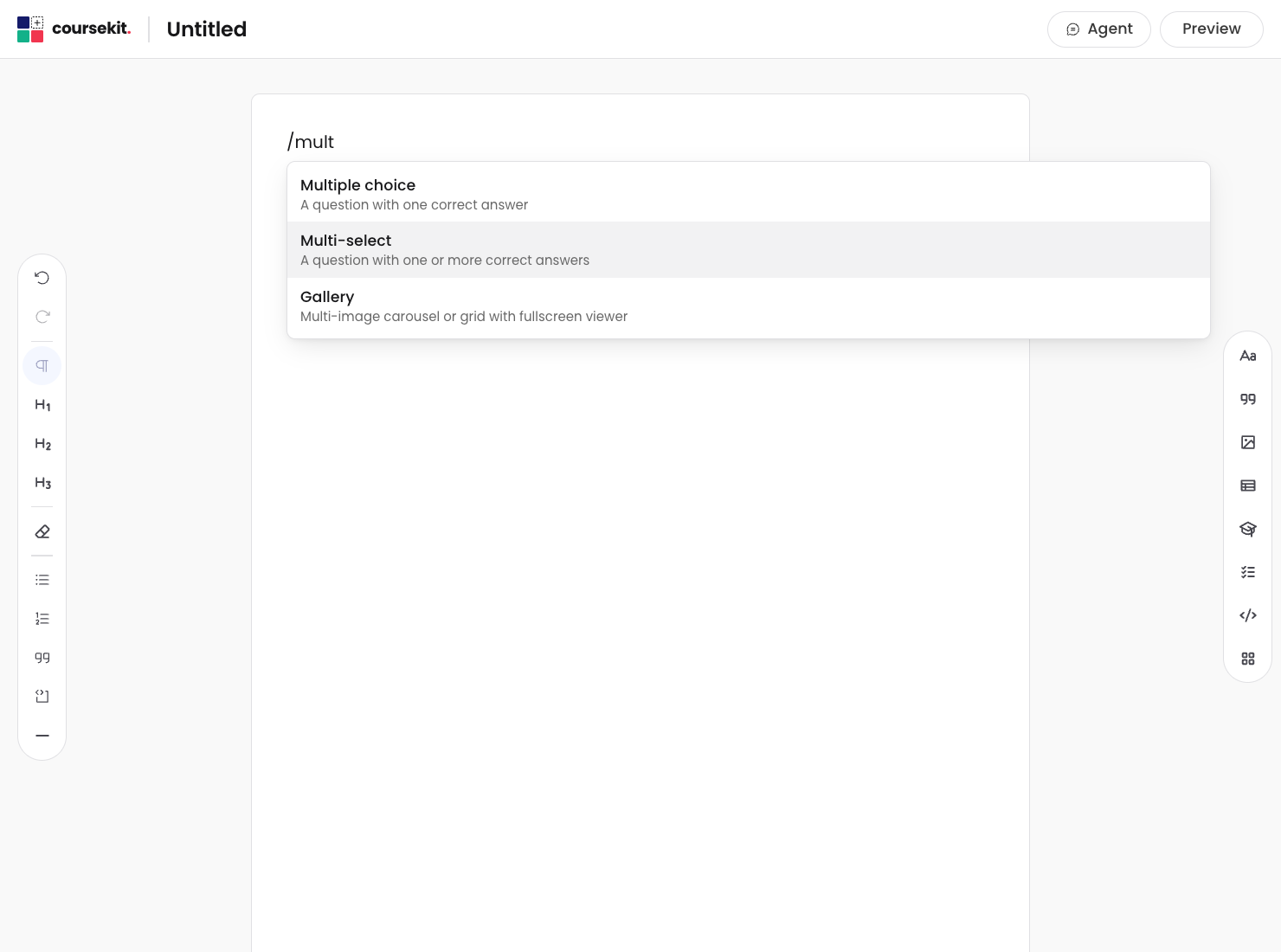
Type / anywhere in the editor. A menu opens listing every block, grouped
by category: Assessment, Content, Display, Media, Data, Embed, Activity.
Keep typing to filter. “mcq”, “multi”, “choice” all narrow the list to multiple-choice. Press Enter to insert the highlighted block, or click the one you want.
This is the fastest way to add a block while you’re writing.
The right rail
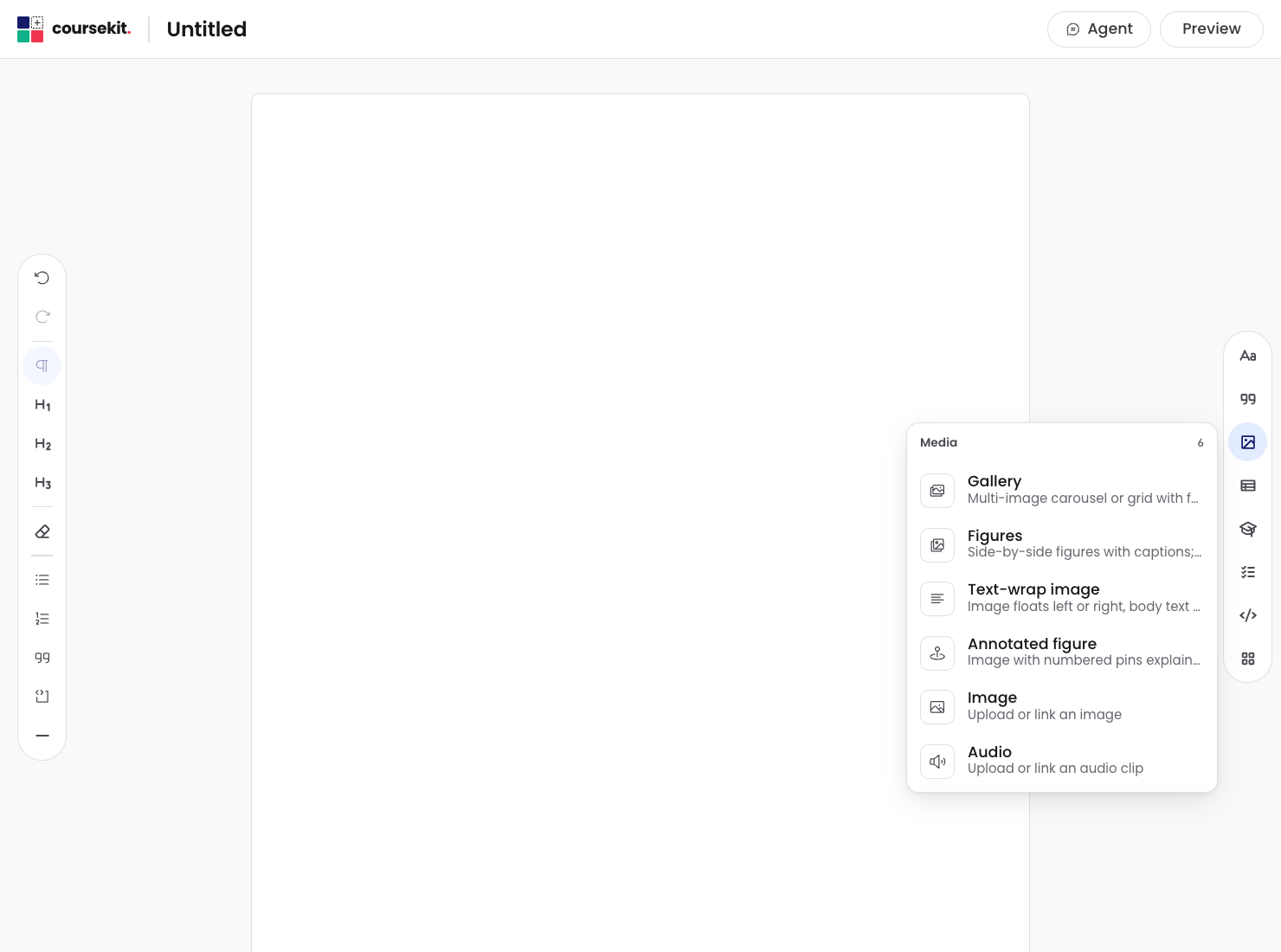
On the right edge of the editor is a vertical strip of category buttons: Assessment, Layout, Content, Embeds. Click any of them to open a popover listing the blocks in that category. Click a block to insert it at the cursor position.
Use the right rail when you want to browse one category at a time instead of typing to filter.
What’s next
- Editing inline covers writing prose, marking correct answers, and adding feedback once a block is in place.
- Moving and resizing is for rearranging blocks after you’ve added them.